

Key Takeaways (TL;DR)
The Real Value: Transform HubSpot from a static database into a dynamic growth engine. By connecting to Clay, you can automatically enrich records with 150+ data sources, identify "ghost" contacts who have changed jobs, and use AI to draft personalized outreach based on live social signals.
Continuous Workflow Strategy: Avoid the common pitfall of treating the integration as a one-time sync. To maximize ROI, configure bidirectional data flows; importing records, applying enrichment logic, and writing data back to HubSpot properties to power automated sales sequences.
Timing and Implementation: Establishing the OAuth connection takes 5–10 minutes. Developing a production-ready workflow; including field mapping, data validation, and setting up conditional run logic typically requires 2–4 hours.
Mandatory Requirements: You must have HubSpot Super Admin permissions to approve OAuth scopes and an active Clay Pro plan ($800/mo). Without a Pro plan, the HubSpot connector will not be visible in your integration menu.
Data Hygiene and Strategy: Define a clear data strategy before syncing. Use Clay to automatically flag inactive leads and maintain CRM integrity, ensuring your sales team focuses only on high-intent, enriched prospects rather than outdated records.
Overview Table
Aspect | Details |
Plan Requirement | Clay Pro ($800/month or 10% discount paying $8.6k annual) |
Setup Time | 5-10 minutes for connection, 2-4 hours for first workflow |
Key Capabilities | Import HubSpot objects, create new records, update existing data, enrich with 150+ sources |
Primary Use Cases | Company/contact enrichment, ICP seed list building, champion tracking, automated prospecting |
Data Flow | Bidirectional (HubSpot → Clay → HubSpot) |
Supported Objects | Deals, Companies, Contacts, Custom Objects |
Why Connect HubSpot and Clay?
Connecting HubSpot to Clay transforms your CRM from a static database into a dynamic growth engine. While HubSpot excels at managing relationships and tracking deal stages, it often suffers from data decay – according to MarketingSherpa, B2B contact data decays at 2.1% per month, compounding to a 22.5% annual loss across your database. That means in a CRM of 10,000 contacts, over 2,200 records become obsolete every year. Clay solves this by acting as a real-time intelligence layer that sits on top of your CRM.
The primary advantages of this integration include:
Automated Data Enrichment: Instead of sales reps spending hours on LinkedIn or company websites, Clay automatically populates HubSpot properties with verified data from 50+ sources. This includes hard-to-find details like specific tech stacks, recent headcount growth, and funding rounds.
Precision Prospecting: By pulling your existing HubSpot "Seed List" into Clay, you can use AI to find lookalike companies that match your ideal customer profile (ICP) and push them directly back into HubSpot as new leads.
Dynamic Personalization: Clay can scrape a prospect's latest LinkedIn post or a company’s recent news and use AI to draft a personalized opening line. This data is then synced to a HubSpot property, allowing your sequences to feel human and researched at scale.
CRM Hygiene: Use Clay to automatically identify and flag "ghost" accounts – contacts who have left their companies – by cross-referencing HubSpot records with live social data, ensuring your team never wastes effort on dead leads.
What You Need Before Connecting HubSpot and Clay
To ensure a seamless connection between HubSpot and Clay, you must first verify that your setup meets the following essential requirements.
HubSpot Account Requirements
For connecting HubSpot with Clay, you need admin-level access to your HubSpot account. The OAuth flow requires specific "App Marketplace" and "Super Admin" permissions that standard users don't have. If you're not an admin, loop in whoever controls your HubSpot instance before proceeding, as they will need to approve the initial handshake.
The account type matters less than you'd think for the connection itself. The integration works with HubSpot's free CRM and all paid tiers (Starter, Professional, Enterprise). The difference shows up in what data you can access and manipulate – specifically regarding API rate limits and property limits – not whether the connection works. For instance, Enterprise accounts enjoy higher API burst limits, which is crucial if you plan on syncing thousands of records from Clay simultaneously.
Moreover, custom objects only exist in Enterprise accounts. If you're on a lower tier, you'll be limited to standard objects (Contacts, Companies, Deals, and Tickets). That's fine for most enrichment workflows, but know your limitations before designing complex data architectures; if your business logic relies on a custom "Property" or "Subscription" object, you'll need that Enterprise seat to map those fields into Clay.
Clay Account Setup
Accessing the HubSpot integration requires a Pro plan subscription. Before attempting the connection, verify your status in Clay’s billing settings; if you are on a lower tier, the HubSpot connector will be hidden from your integrations menu entirely. This plan is necessary because CRM integrations utilize Clay’s more robust infrastructure designed for high-volume data syncing and complex API interactions.
Before you pull data, establish a clear workspace structure. Clay organizes information into tables, which function as relational spreadsheets capable of executing code and API calls. You must decide between a centralized architecture – using one master table for all HubSpot records – or a modular approach with separate tables for specific workflows, such as one dedicated to firmographic company enrichment and another for contact-level prospecting and email verification.
For your initial setup, start with a single test table rather than a full database sync. Import a small sample of 50-100 HubSpot records to map your fields, build out your enrichment logic, and verify that the data is writing back to your CRM correctly. Scaling to production volumes too quickly often leads to debugging nightmares involving rate limits, mapping errors, or unintended data overwrites across thousands of records.
Permission Checklist
The HubSpot-Clay connection utilizes OAuth 2.0 scopes to establish a secure, limited-access bridge between the two platforms. These scopes act as a granular security layer, ensuring Clay only interacts with the specific data sets you authorize rather than gaining unfettered access to your entire CRM infrastructure.
Required scopes (Essential for core functionality):
Read/Write access to Contacts, Companies, and Deals: This is the baseline requirement for bidirectional syncing. Without this, Clay cannot pull your existing records for enrichment or push updated data back into HubSpot.
Property Metadata Access: Clay needs to read your internal property names (internal values vs. labels) to ensure that data mapped from a Clay column lands in the correct HubSpot field without formatting errors.
Search API Access: This allows Clay to query your database to find existing records based on unique identifiers like email addresses or domains, which is critical for preventing duplicates.
Optional scopes (Enable based on your specific workflow needs):
Custom Object Access: Required only for HubSpot Enterprise users. This allows Clay to enrich specialized objects like "Subscriptions," "Shipments," or "LMS Courses."
Timeline Events: Grant this if you want Clay to log activities – such as when a lead is enriched or a specific data signal is found – directly onto the contact's activity feed in HubSpot.
Associations: Crucial for maintaining relational integrity. This scope allows Clay to link a newly created contact to an existing company record automatically during the import process.
During the OAuth flow, HubSpot will present a "Request for Integration Permissions" screen. It is vital to verify that the HubSpot Portal ID matches your intended production or sandbox environment. If you are working with sensitive PII (Personally Identifiable Information), ensure your internal data governance policy aligns with Clay’s "Write" permissions, as Clay will have the authority to overwrite existing CRM values based on your workflow configuration.
Security note: Clay operates on a principle of least privilege. It does not store your HubSpot password; instead, it uses a secure access token. You can audit these permissions or revoke access instantly at any time by navigating to Settings > Integrations > Connected Apps within your HubSpot portal.
Understanding Clay's Pricing
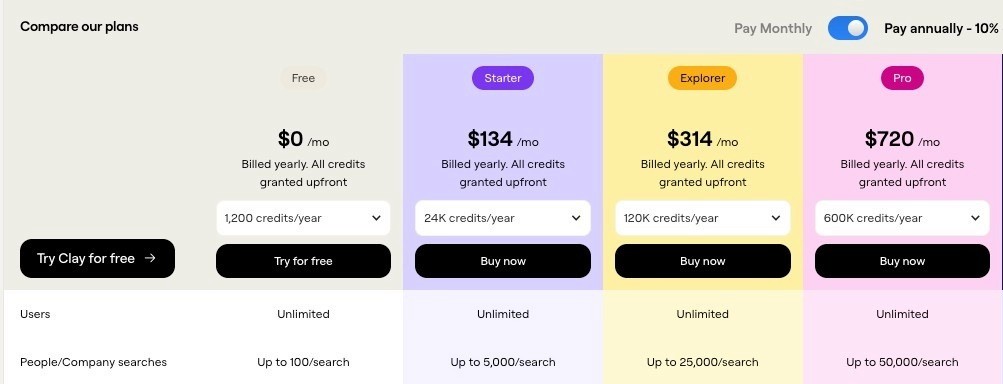
As mentioned above, you cannot connect HubSpot to Clay without a Pro plan. There are no workarounds or "lite" versions of this integration. If you are evaluating Clay specifically for CRM orchestration, you must budget for the Pro tier ($800/month or $8.6k billed annually) from day one; while this is a significant investment, it unlocks the essential infrastructure for bidirectional syncing and includes 50,000 credits to power your workflows.
These 50,000 credits per month are a realistic starting point for most mid-market GTM teams. A credit is consumed every time Clay queries a data provider – such as finding a verified email, pulling headcount, or scraping a website. For a standard enrichment workflow (e.g., taking a HubSpot domain and pulling revenue, industry, and a LinkedIn URL), you are looking at roughly 3-5 credits per record. This means you can fully enrich about 10,000-16,600 records monthly within your base allotment.
To make these credits last, you must avoid "spray and pray" enrichment. The biggest mistake teams make is running expensive waterfalls (cascading multiple data providers) on their entire CRM database at once. Instead, use Clay’s conditional logic to only enrich records that meet specific criteria, such as "Lifecycle Stage = Lead" or "Last Enriched Last 90 days."
How to Connect HubSpot to Clay
The actual connection process is straightforward and follows a standard OAuth 2.0 flow. You'll be signing into your HubSpot portal directly through Clay's secure interface to authorize the data bridge and approve specific permission scopes. The entire procedure typically takes between 5 and 10 minutes to complete, provided you have your HubSpot Super Admin credentials ready and your Clay Pro workspace active.
Step 1: Access Clay Integrations
Log into your Clay workspace. In the left sidebar, click "Integrations" (it's near the bottom, below Tables and Templates).
You'll see Clay's integration marketplace. There are 150+ data sources here, but you want HubSpot. Use the search bar at the top and type "HubSpot". The HubSpot CRM connector appears first.
Click the HubSpot integration card. You'll land on a page explaining what the integration does (import objects, create records, update data). Click "Connect" in the top right.
Pro plan checkpoint: If you don't see a "Connect" button and instead see "Upgrade to Pro," you're not on the right plan. Stop here and upgrade before proceeding.
Step 2: OAuth Authentication
Clicking "Connect" triggers the OAuth flow. Clay redirects you to HubSpot's authorization page. This is where you sign in and approve permissions.
Sign in to HubSpot using your admin credentials. If you're already logged into HubSpot in another browser tab, it might skip this step and go straight to permissions.
The authorization screen shows exactly what Clay is requesting access to. You'll see a list of scopes like:
Read and write contacts
Read and write companies
Read and write deals
Access custom objects (if applicable)
Review this list. Make sure you're comfortable granting these permissions to Clay. You can revoke access later if needed.
Click "Grant access" or "Authorize" (the button text varies by HubSpot account type). HubSpot processes the request and redirects you back to Clay.
What's happening behind the scenes: HubSpot generates an access token that Clay stores. This token lets Clay make API calls to your HubSpot account without requiring your password. The token expires periodically (usually after a few months), at which point you'll need to re-authenticate.
Step 3: Verify Connection
You're back in Clay. The HubSpot integration page should now show "Connected" with a green checkmark. You'll also see which HubSpot account is connected (displayed as your HubSpot portal ID or account name).
Test the connection immediately. Don't assume it worked just because you see a green checkmark. Create a new table in Clay and add a HubSpot enrichment column.
Click "Add enrichment" → "HubSpot" → "Find Companies". If the connection works, you'll see a dropdown menu letting you select HubSpot properties to search by. Try searching for a company you know exists in your HubSpot account.
If Clay returns data, your connection is live. If you get an error like "Authentication failed" or "Invalid token," something broke during OAuth. Disconnect and reconnect, making sure you're using admin credentials.
How the HubSpot Clay Integration Works
Now that you're connected, let's talk about what this integration actually does. Understanding the data flow prevents confusion when you're building workflows.
Data Flow Overview
The HubSpot-Clay integration is bidirectional. Data moves both ways.
HubSpot → Clay: You import existing HubSpot records (contacts, companies, deals) into Clay tables. This pulls data like names, email addresses, company domains, deal values, and any custom properties you've created in HubSpot.
Clay → HubSpot: After enriching data in Clay, you push updates back to HubSpot. This creates new records or updates existing ones with enriched information (revenue data, employee counts, tech stack details).
Processing speed: Most operations happen in near real-time. When you import HubSpot records into Clay, they appear within seconds. Pushing updates back to HubSpot takes a bit longer (30 seconds to a few minutes) depending on volume.
Object Types Supported
Clay works with HubSpot's core CRM objects.
Companies: Your target accounts. Import company records to enrich with firmographic data (revenue, employee count, industry, location). This is the most common use case for the integration.
Contacts: Individual people in your CRM. Import contacts to enrich with job titles, LinkedIn profiles, email verification, and phone numbers.
Deals: Sales opportunities. Less commonly used for enrichment, but you can import deals to analyze pipeline data or trigger workflows based on deal stage changes.
Custom Objects: If you're on HubSpot Enterprise and have created custom objects (like "Partners" or "Events"), Clay can access those too. You'll need to approve the custom object scope during OAuth.
Clay can also create and read associations between objects. When you create a new contact in HubSpot via Clay, you can associate that contact with an existing company. This keeps your CRM data structure intact.
Operation Types
Clay performs three main operations with HubSpot data.
Operation Type | What it does | Example | Use Case |
Lookup Operations | Searches HubSpot for existing records matching specific criteria. Think of it as a "find" function. | You have a list of company domains in Clay. You use a lookup operation to check if those companies already exist in HubSpot. | Deduplication before creating new records to prevent duplicate companies in HubSpot. |
Update Operations | Modifies existing HubSpot records with new data. You specify which record to update and which properties to change. | You've enriched company records in Clay with employee count and revenue data and push those values back to HubSpot. | Keeping HubSpot data fresh with enriched information from Clay's 150+ data sources. |
Create Operations | Adds brand new records to HubSpot that don't exist yet. | You've built a list of 500 ICP companies in Clay using lookalike prospecting and add them as new company records in HubSpot. | Populating HubSpot with net-new prospects identified through Clay's prospecting workflows. |
HubSpot Clay Connection Features and Capabilities
Let's get specific about what you can actually do with this integration. These are the features you'll use in production workflows.
Importing HubSpot Objects
How it works: In any Clay table, add a column and select "Import from HubSpot." Choose your object type (Companies, Contacts, or Deals). Clay pulls records based on filters you define.
Filtering options: You can import all records or filter by HubSpot properties. For example:
Companies where "Industry" equals "Software"
Contacts where "Lifecycle Stage" equals "Lead"
Deals where "Amount" is greater than $50,000
Bulk import limits: Clay can import thousands of records at once, but HubSpot's API has rate limits. If you're importing 10,000+ records, expect it to take several minutes. Clay handles the rate limiting automatically, so you won't hit errors.
Property selection: Choose which HubSpot properties to import. You don't need to pull every field. If you only care about company name, domain, and industry, import just those three properties. This keeps your Clay table clean and speeds up processing.
Creating New Records
How it works: After building a list in Clay (through prospecting, scraping, or other enrichment), use the "Create in HubSpot" action to add those records to your CRM.
Field mapping: You map Clay columns to HubSpot properties. For example:
Clay column "Company Name" → HubSpot property "Name"
Clay column "Website" → HubSpot property "Domain"
Clay column "Enriched Revenue" → HubSpot property "Annual Revenue"
Required fields: HubSpot requires certain properties for each object type. For companies, you need at minimum a company name or domain. For contacts, you need an email address. Clay validates these requirements before creating records.
Deduplication logic: Clay checks for existing records before creating new ones (if you configure it to). This prevents duplicate companies or contacts. The check typically uses email for contacts and domain for companies.
Batch creation: You can create hundreds of records at once. Clay processes them in batches and shows progress in real-time. If any records fail (due to validation errors or missing required fields), Clay flags them so you can fix and retry.
Updating Existing Records
How it works: Use the "Update in HubSpot" action to modify records that already exist in your CRM. You specify which record to update (by email, domain, or HubSpot record ID) and which properties to change.
Merge logic: When updating, you choose whether to overwrite existing values or only fill in blank fields. For example:
Overwrite mode: Replace HubSpot's current "Annual Revenue" value with Clay's enriched data, even if HubSpot already has a value
Fill blanks mode: Only update "Annual Revenue" if HubSpot's field is currently empty. This feature is one of my favorites.
Field-level updates: You don't have to update all properties. Update just the fields you've enriched in Clay. Leave everything else untouched.
Update validation: Clay shows you a preview before executing updates. Review the changes to make sure you're not accidentally overwriting good data with bad enrichment results.
Use case example: You imported 1,000 HubSpot companies into Clay, enriched them with employee count and tech stack data, and now you're pushing those two new properties back to HubSpot. The companies' names, domains, and other existing properties remain unchanged.
Creating Associations
How it works: When creating or updating records, you can link them to other HubSpot objects. This maintains your CRM's relational structure.
Contact-to-company linking: When creating a new contact, associate them with an existing company (matched by domain). This ensures contacts appear under the right company in HubSpot.
Deal associations: Link deals to contacts and companies. Useful if you're creating deals in Clay based on enriched data (like intent signals) and want them properly associated in HubSpot.
Association types: HubSpot supports different association labels (like "Primary Contact" vs "Secondary Contact"). Clay lets you specify these when creating associations.
Practical example: You've built a list of decision-makers at target accounts. You create them as new contacts in HubSpot and associate each contact with their company (which already exists in HubSpot). Now when your sales team opens a company record in HubSpot, they see all the relevant contacts you've added.
Example Workflow: Company Enrichment with HubSpot to Clay Sync
Let's walk through a real workflow. This is the most common use case: enriching existing HubSpot companies with fresh data.
Workflow Setup Overview
Goal: Take your HubSpot companies, enrich them with firmographic data (revenue, employee count, industry, region, LinkedIn handle), and sync the enriched data back to HubSpot.
Why this matters: Your HubSpot data gets stale. Companies grow, shrink, change industries, or update their websites. Manual research to keep this data current takes hours per week. This workflow automates it.
Trigger configuration: You can run this workflow on-demand (manually trigger it whenever you want) or on a schedule (automatically re-enrich companies quarterly). For this example, we'll set up a quarterly schedule.
Table structure: Create a new Clay table called "HubSpot Company Enrichment." This table will hold your imported HubSpot companies and the enriched data columns.
Step-by-Step Enrichment Process
Step 1: Import HubSpot companies
Add a column in your Clay table and select "Import from HubSpot." Choose "Companies" as the object type.
Filter to companies you want to enrich. Filter by "Lifecycle Stage = Customer" if you only want to enrich existing customers. Or import all companies if you want complete data coverage.
Select which HubSpot properties to import. At minimum, grab:
Company Name
Domain
HubSpot Record ID (you'll need this to sync data back)
Clay imports the companies. You'll see them populate your table, one row per company.
Step 2: Add enrichment columns
Now you'll add columns that enrich each company with new data. Click "Add enrichment" and select your data sources.
Revenue enrichment: Use Clay's company data providers (like Clearbit, PredictLeads, or Apollo) to pull annual revenue. Add a column called "Enriched Revenue." Clay looks up each company by domain and returns revenue data.
Employee count enrichment: Add another enrichment column for employee count. Same process – Clay queries data providers using the company domain.
Industry enrichment: Add a column for industry classification. Data providers return standardized industry categories (like "Computer Software" or "Financial Services").
Processing time: Clay enriches companies in real-time as you add columns. For 1,000 companies with 5 enrichment columns, expect 5-10 minutes of processing time.
Step 3: Sync enriched data back to HubSpot
Once enrichment is complete, you'll push the new data back to HubSpot. Add a "Update in HubSpot" action column.
Configure the update:
Match by: HubSpot Record ID (this ensures you update the exact right company)
Properties to update: Map your Clay enrichment columns to HubSpot properties:
"Enriched Revenue" → "Annual Revenue"
"Enriched Employee Count" → "Number of Employees"
"Enriched Industry" → "Industry"
"Enriched Region" → "Region"
"LinkedIn Handle" → "LinkedIn Company Page"
Update mode: Choose "Fill blanks only" for your first run. This updates companies missing data without overwriting existing values. After you've verified data quality, switch to "Overwrite" mode for future runs.
Click "Run" and Clay executes the updates. You'll see a progress indicator showing how many companies have been updated.
Verification: Go to HubSpot and spot-check a few companies. Confirm that the enriched properties now have values. Check for data quality issues (like incorrect revenue figures or mismatched industries).
Results and Benefits
Benefit | Description |
Data Quality Improvements | Increases data coverage (e.g., revenue data) from \~30% to 85%+, ensuring consistent employee count and industry fields. |
Time Savings | Reduces research time for 1,000 companies from 20-30 hours of manual work to under 15 minutes of automated processing. |
Segmentation Capabilities | Enables accurate HubSpot list building based on firmographic filters like employee range, industry, or revenue brackets. |
Sales Enablement | Provides reps with immediate visibility into revenue and LinkedIn profiles directly in HubSpot, eliminating manual searching. |
Advanced Clay HubSpot Setup: Automation and Conditional Runs
Once you've mastered basic enrichment, you can build sophisticated automation that runs without manual intervention.
Conditional Run Settings
What it does: Conditional runs let you control when enrichment actions execute. Instead of enriching every row in your table, you set conditions that trigger enrichment only for specific records.
Example conditions:
Only enrich companies where "Annual Revenue" is blank in HubSpot
Only enrich contacts where "Last Enrichment Date" is older than 90 days
Only enrich companies where "Employee Count" has changed by more than 20%
How to configure: In any enrichment column, click the settings icon and select "Conditional run." Choose your trigger condition from a dropdown menu. Clay evaluates the condition for each row and only runs the enrichment if the condition is true.
Why this matters: Saves credits and processing time. If you're re-running an enrichment workflow monthly, you don't want to re-enrich companies that haven't changed. Conditional runs skip those rows automatically.
Advanced logic: Combine multiple conditions with AND/OR operators. For example: "Run if (Annual Revenue is blank) OR (Last Enrichment Date > 90 days ago)."
AI Agents for Data Processing
What it does: Clay's AI agents analyze and transform data automatically. You can use them to clean messy data, extract specific information, or make decisions based on enriched data.
Use case 1: Data cleaning: You've enriched company names, but some results are messy (like "Google Inc." vs "Google LLC" vs "Alphabet Inc."). An AI agent can standardize these to a single format.
Use case 2: Smart field population: You've pulled job titles for contacts, but you need to categorize them as "Executive," "Manager," or "Individual Contributor." An AI agent reads the job title and assigns the category automatically.
Use case 3: Personalization: You've enriched companies with recent news articles. An AI agent reads the articles and generates a personalized first line for outreach emails based on the news.
How to set up: Add an "Claygent" column in your Clay table. Write a prompt telling the AI what to do. For example: "Read the job title in column B and categorize it as Executive, Manager, or IC."
Ready to Automate Your HubSpot Data Enrichment?
Now that you know how to bridge HubSpot and Clay, it’s time to turn your CRM into a high-performance growth engine.
Start by auditing your current data gaps and identifying which enrichment workflows will have the highest impact on your sales cycles. By implementing automated bidirectional syncs and conditional logic, you’ll eliminate manual research and ensure your team is always working with the most accurate, up-to-date intelligence.
The result: a cleaner CRM, more personalized outreach, and a pipeline built on data-driven insights.
Need help setting up your HubSpot-Clay workflows? Let’s jump on a quick call
Frequently Asked Questions
Do I need a paid Clay plan to connect HubSpot?
To connect HubSpot to your workspace, you must subscribe to the Clay Pro plan starting at $800 per month. This specific tier is required because CRM integrations rely on advanced infrastructure for bidirectional syncing and high-volume API orchestration that isn't available on lower plans. While the investment is significant, it unlocks the ability to automate complex data waterfalls and write-back logic directly into your CRM. There are currently no workarounds or "lite" versions for users on the Starter or Free tiers.
What HubSpot objects can I import into Clay?
You can import all core HubSpot objects – including Companies, Contacts, and Deals – directly into Clay tables to initiate enrichment workflows. For organizations on a HubSpot Enterprise plan, Clay also supports Custom Objects, allowing you to sync specialized data like subscriptions or product usage. This integration maintains relational integrity by preserving associations between records during bulk imports and updates. By mapping these objects precisely, you ensure that your enriched intelligence remains structured and actionable within your existing CRM architecture.
Can I update existing HubSpot records from Clay or only create new ones?
You have the ability to both update existing HubSpot records and create entirely new ones directly from your Clay workspace using bidirectional sync. By utilizing unique identifiers like Record IDs, email addresses, or domains, you can push enriched data back to specific fields while maintaining strict deduplication logic. This flexibility allows you to choose between overwriting outdated information or selectively filling blank properties to preserve manual research.
What specific data can Clay enrich for my HubSpot contacts and companies?
To enrich your HubSpot records, Clay taps into 150+ data providers to pull deep firmographic and technographic details like verified annual revenue, real-time headcount growth, and specific software tech stacks. Beyond company data, you can extract individual-level intelligence such as validated work emails, active LinkedIn profiles, and recent social signals to identify the best time to reach out. This multi-source information is then mapped directly to your HubSpot properties, allowing you to replace generic fields with high-signal data points.
What permissions does Clay need to access my HubSpot account?
To establish a secure connection, Clay requires OAuth 2.0 scopes that grant read and write access to your contacts, companies, and deals, ensuring bidirectional data flow. It also needs permission to view property metadata to correctly map internal HubSpot fields to Clay columns, preventing formatting errors during sync. These permissions are managed through a secure handshake that uses access tokens rather than storing your password, maintaining a principle of least privilege. You remain in full control of your data and can audit or revoke these permissions at any time through your HubSpot portal settings.
Can I set up automated workflows that trigger when HubSpot data changes?
You can build automated workflows that trigger based on specific changes or filters within your HubSpot environment, such as a lead moving to a "Qualified" stage. By utilizing Clay’s conditional run settings, you can instruct the platform to only execute enrichment when specific fields are blank or when high-intent signals are detected. This granular control ensures your CRM data stays fresh and actionable without wasting credits on records that don't meet your current strategic criteria.
How much does the Clay Pro plan cost for HubSpot integration?
The Pro plan required for HubSpot integration is priced at $800 per month, or $720 per month when billed annually, serving as the entry point for bidirectional CRM syncing. This investment unlocks the full suite of native connectors and provides 50,000 monthly credits, which typically covers the comprehensive enrichment of 10,000 to 16,000 records depending on your enrichment complexity. For mid-market GTM teams, this tier provides the necessary infrastructure to automate sophisticated data flows.